
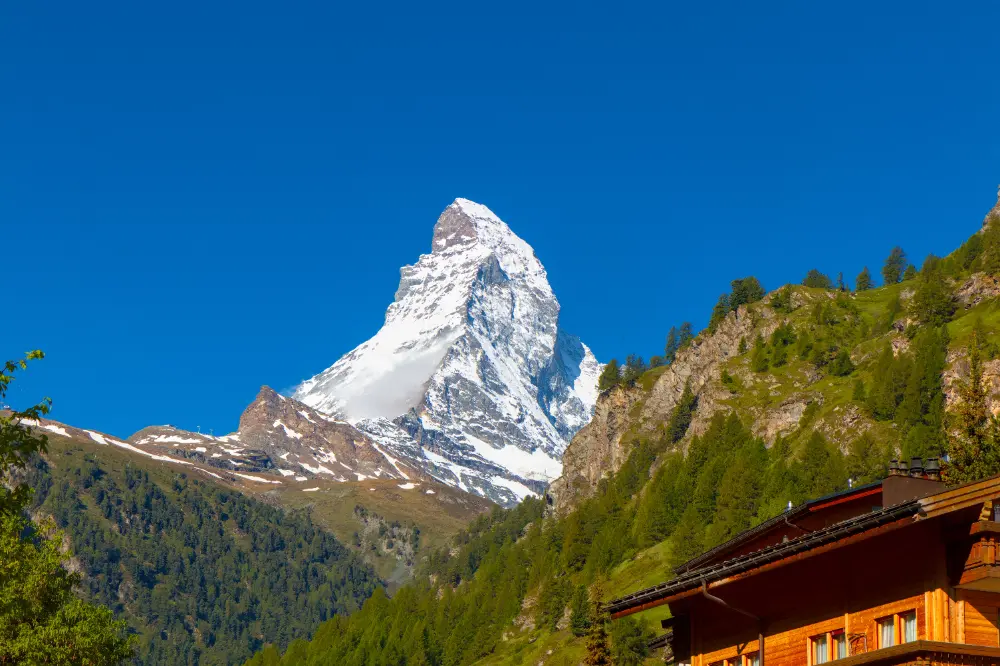

This post provides an overview of how to use the scene-referred workflow in darktable using easy, step-by-step instructions. See here for an explanation of what scene-referred means and why you should use it over the display-referred workflow that many photo processing programs still use.
In addition, the excellent tutorial videos by Boris Hajdukovic provide a good demonstration of how to use these tools to achieve great results.
Setup
Workflow
Before processing images, set the following setting in the processing tab of the Preferences window to enable a scene-referred workflow with the AgX module:

You might find that the filmic rgb or sigmoid tone mapping modules work better for certain images, but in general AgX works great.
Theme
In the general tab, set the theme to darktable-elegant-grey. This is important to help judge a correct exposure since the grey background of this theme is roughly 18% grey (more info).
Modules
Moreover, set the list of modules you are using to the scene-referred workflow (or your own similar grouping of these modules):
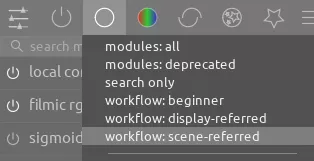
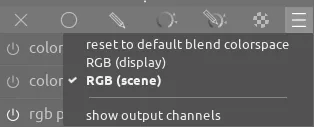
If you hover over the name of a module, it will tell you if it is operating in a scene-referred or display-referred mode. If you use a blend mode on the module, make sure to select the either scene-referred or display-referred from the list of blend modes as needed:
Lens Correction
Create a preset to automatically enable the lens correction module for your lens to adjust for lens distortion.
Developing
RAW Overexposure Check
Note
RAW overexposure will not change based on the adjustments you make to the exposure in the sections below; these are pixels that were clipped at time of capture and can only be reconstructed as outlined below
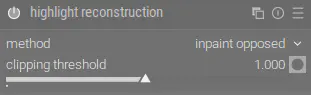
After entering the darkroom mode, hit Shift+O to check RAW overexposure. If there are clipped highlights in the RAW that you want to recover, decide if you want to use the highlight reconstruction module or not (details in the manual). If you do enable it, the default inpaint opposed setting for method will likely give the best results:
When done reviewing the RAW overexposure and setting highlight reconstruction, hit Shift+O to stop showing the RAW overexposure.
Midtones Exposure

Tip
If you have trouble matching the midtones to the grey background, consider enabling the B&W : luminance-based preset in the color calibration module temporarily while making this adjustment (and reset the module once done).
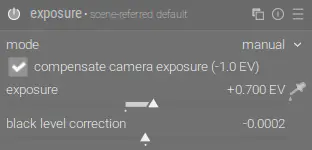
Hit Ctrl+B to show the color assessment window. On the exposure module, use the exposure slider to increase the midtones until they look good relative to the grey background (which is roughly middle grey). At this point, if you have any bright whites in your photo, they should look similar to the white border:
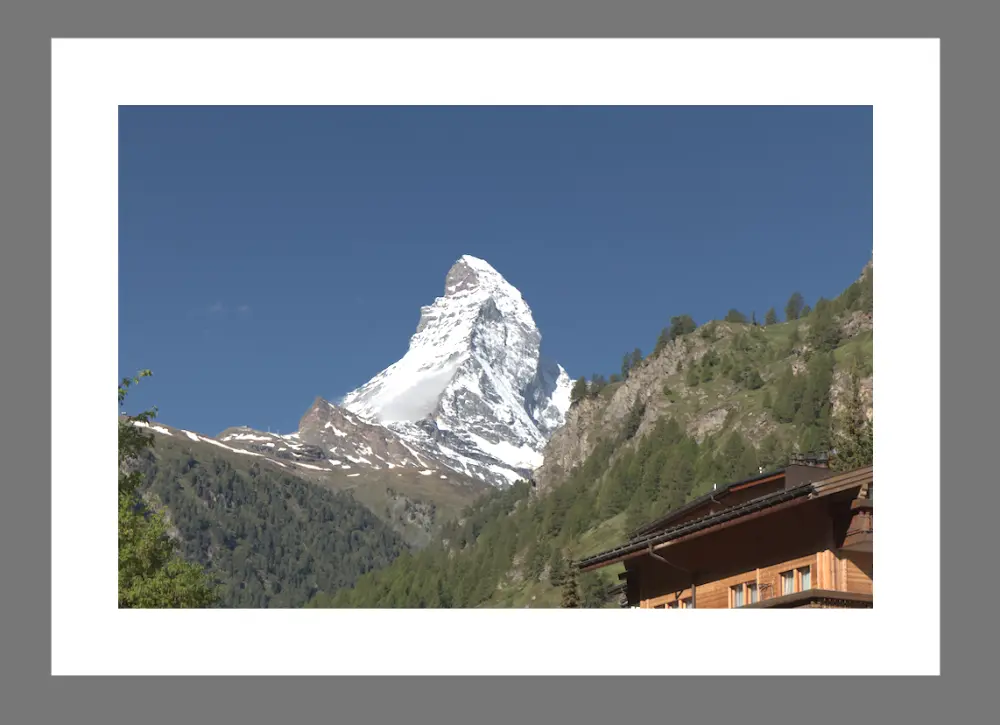
Do not worry about the highlights or shadows seeming to be clipped (we will pull those back shortly). You'll likely not need to adjust other sliders on the exposure module. Hit Ctrl+B again to hide the color assessment window.
Shadows and Highlights Exposure and Contrast

On the AgX module, use the eye droppers next to the white relative exposure and black relative exposure sliders to adjust the highlights and shadows respectively to recover clipped areas:
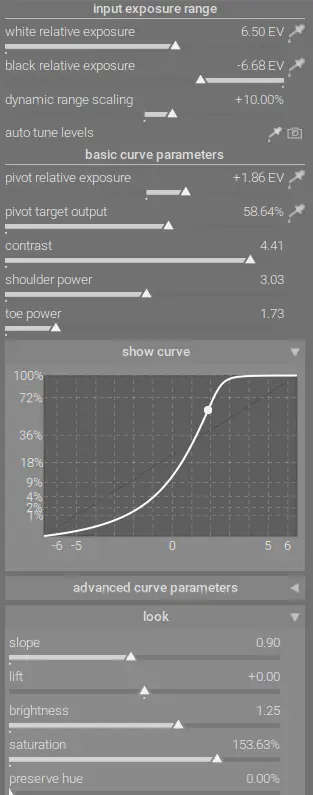
Next, use the eye dropper next to pivot target output to select the part of the image where you want the highest contrast - in this case, I selected the mountain. Next, adjust the contrast, shoulder power, and toe power sliders to increase contrast overall, in the highlights, and in the shadows respectively. You can also use the slope and lift sliders to move the brightest highlights and darkest shadows closer to the edges:

For more details on how these exposure-related sliders in AgX work, see this post.
Note
Alternatively, instead of using AgX you can use the filmic rgb or sigmoid modules. Only enable one at a time and see which one gives a better result for your particular image.
Dodging and Burning
For fine-tuning exposure in part of the image, use tone equalizer (don't forget to set mask exposure compensation and mask contrast compensation before making adjustments); see this tone equalizer guide for details.
Local Contrast
I recommend enabling one or more of the following to increase local contrast:
- the local contrast module is easy to use and often produces good results. Adjust the detail slider as needed:
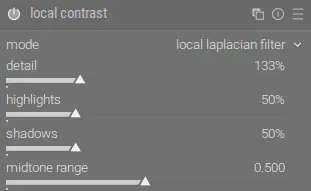
- the contrast equalizer module can help boost contrast or conversely soften certain parts of the image, but be careful with how far you push this module because it can create artifacts
Color
White Balance
With the settings configured at the beginning of this tutorial, the white balance module should be automatically enabled and configured to use as shot to reference:
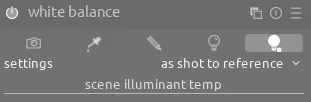
This means there is nothing that we need to change in white balance and we can go to color calibration to configure white balance. See the CAT tab workflow for details, but in most cases all you need to do is click the eye dropper and select a neutral part of the image:
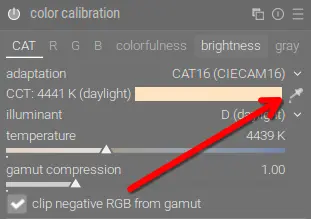
The color calibration module can be used with masks, so you can apply a different white balance on different parts of the image if there are multiple illuminants present. For details on how to use masks to set a different white balance on parts of the image, see this section.
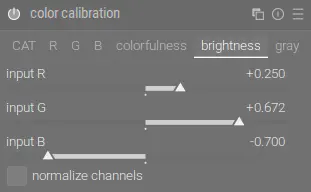
In this particular image, the blue sky is very bright and the mountain and trees are dark. We can invert this (to direct attention to our subject) by reducing the brightness of the B channel and increasing the brightness of the R and G channels in the brightness tab:
Saturation
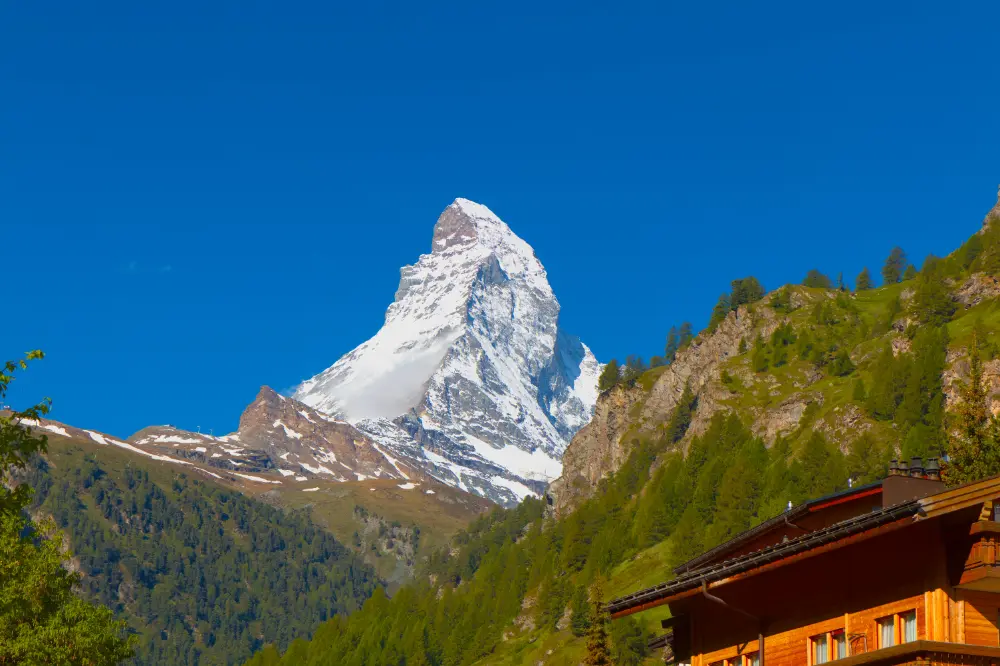
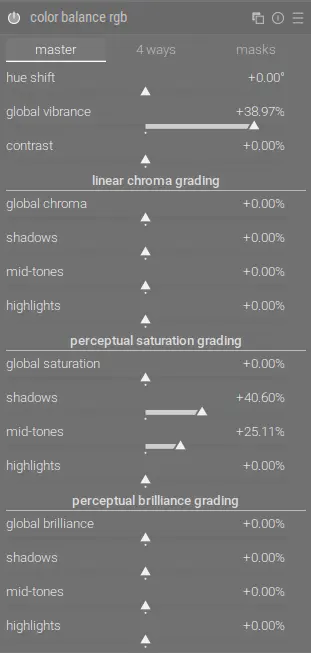
Generally, you can use the saturation slider in AgX to increase saturation. For more fine-grained control, use the color balance rgb module to increase chroma, saturation, and brilliance:
Color Adjustments
The primaries tab of AgX can be used to correct color shifts; see this post for details. For other color adjustments (e.g. artistic changes), use one or more of these modules:
- color equalizer - easily adjust the hue, saturation, and brightness for specific color ranges on the image; see here for details
- rgb primaries - this is much easier than a traditional channel mixer so is a good first choice
- the channel mixing tabs of color calibration
- color balance rgb
- color look up table (but prefer the other modules when possible)
Remember, you can make multiple instances of any of these modules and apply them to different parts of the image using masks.
Black and White
Tip
For dramatic black and white images, see this guide for details.
For converting an image to black and white, use one of these options:
- color calibration using the grey tab
- lut 3D with a black and white LUT
Correction
Use the following modules to perform corrections on the image as needed:
- use the crop and rotate and perspective modules to adjust crop, rotation, and perspective
- you can use diffuse or sharpen module with one of the sharpness presets to sharpen the image. Use another instance with the dehaze preset to remove haze from landscape scenes. Alternatively, you can also use haze removal
- enable denoise (profiled) if necessary to correct noise (the default settings should handle both chroma and luma noise)
- for these specific issues, use chromatic aberrations or hot pixels
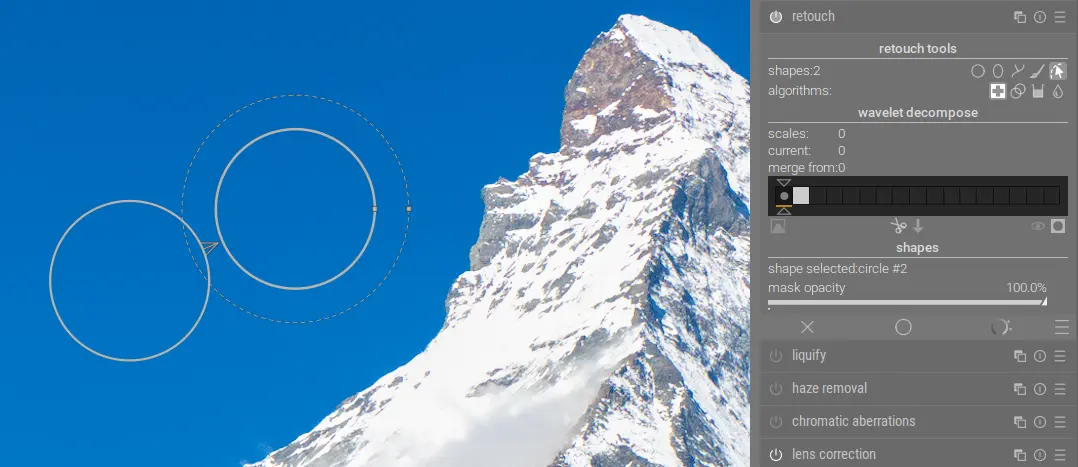
- use retouch to remove red-eye or other unwanted objects from the image (more details in this retouch tutorial). In this case, remove the distracting clouds:
Final Image