
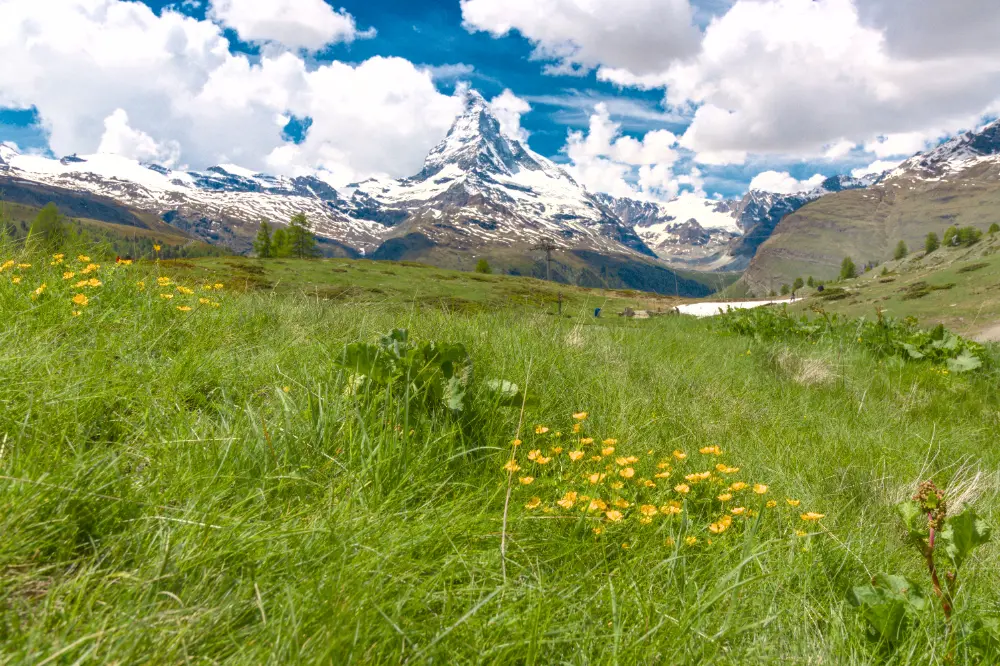
Green plants in landscapes don't always appear as green - they can range from shades of yellows to shades of blues depending on the lighting. In this tutorial, learn how to adjust these important shades to control the overall look of your landscape scene.
Yellow Sunset Color Cast
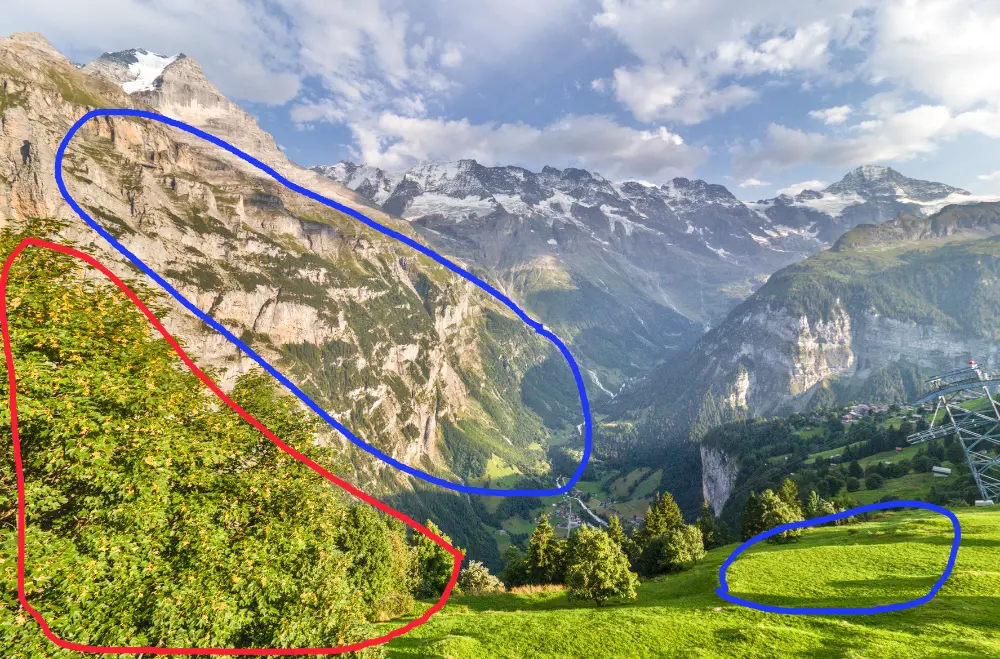
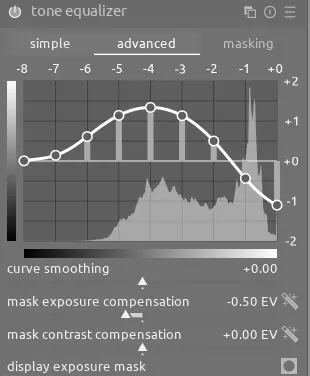
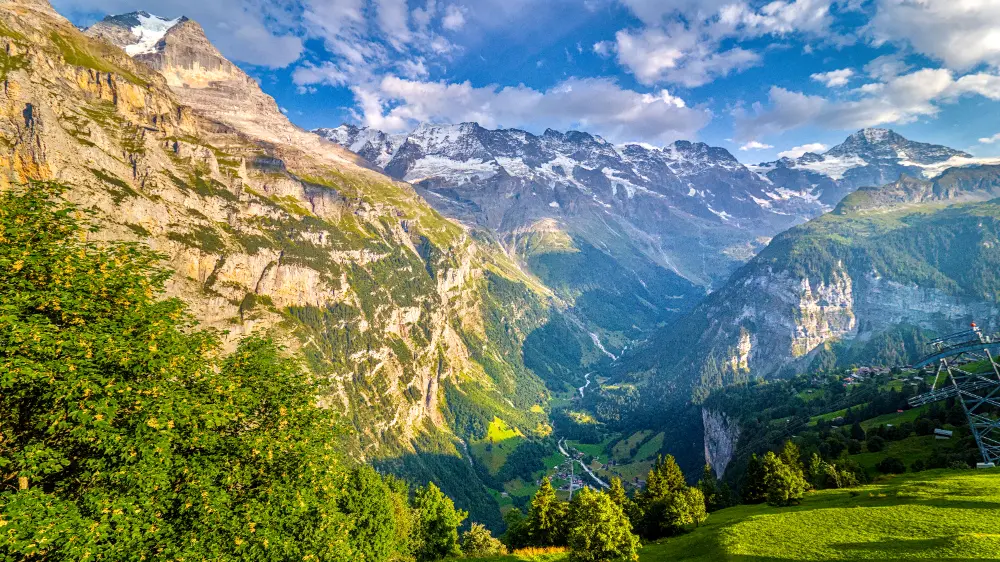
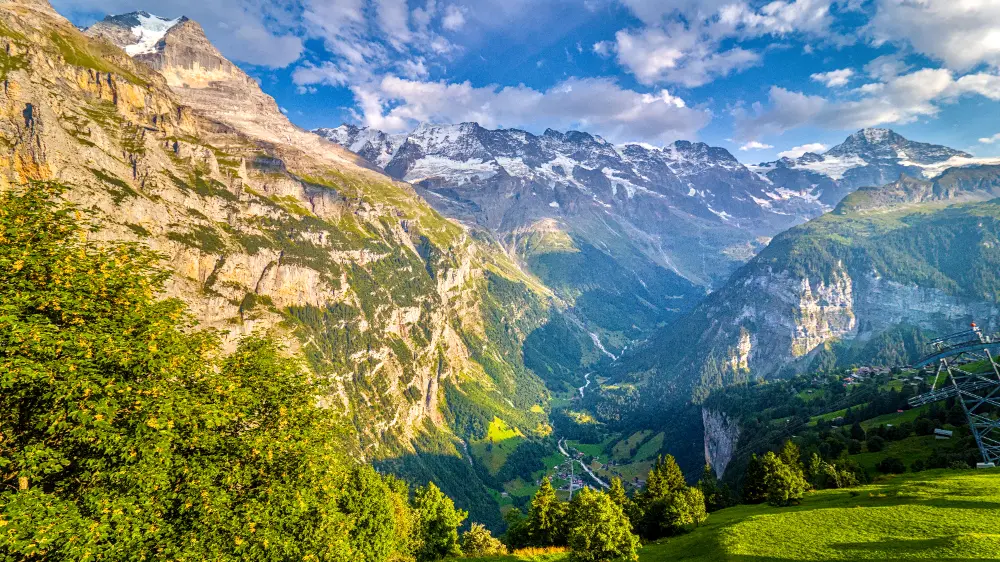
This beautiful scene was taken near sunset, and the low-hanging sun off to the right creates a yellow color cast across the image. This isn't a problem in the blue areas but is an issue in the red area because of how bright and intense it is. First, let's reduce the overall contrast with tone equalizer:
Now, let's focus on how to handle this yellow color cast. We can use an instance of color balance rgb with a drawn mask to select just this area and a parametric mask to select the yellows:
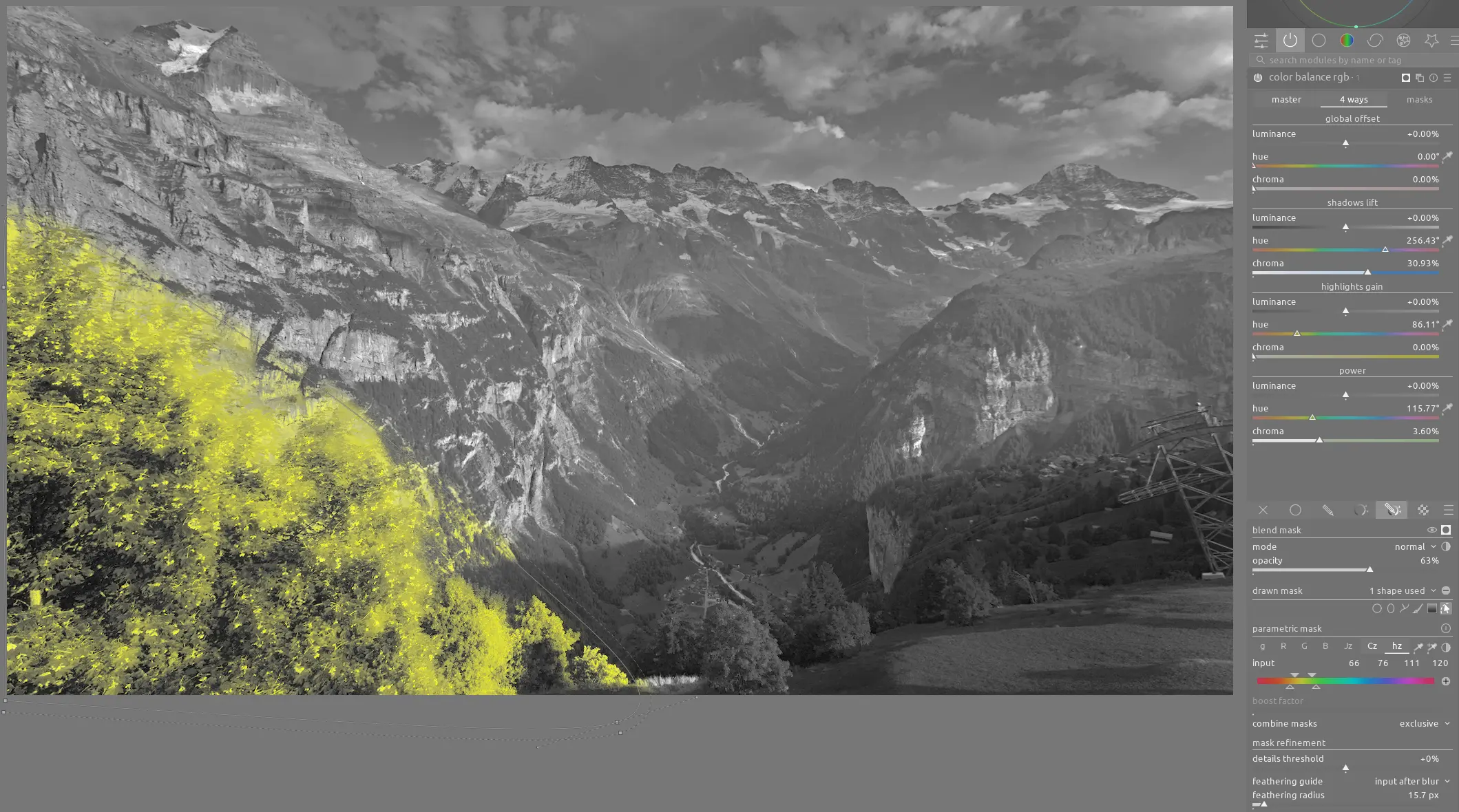
Then, using the 4 ways tab, we can add blue to the shadows and green to the power (midtones):
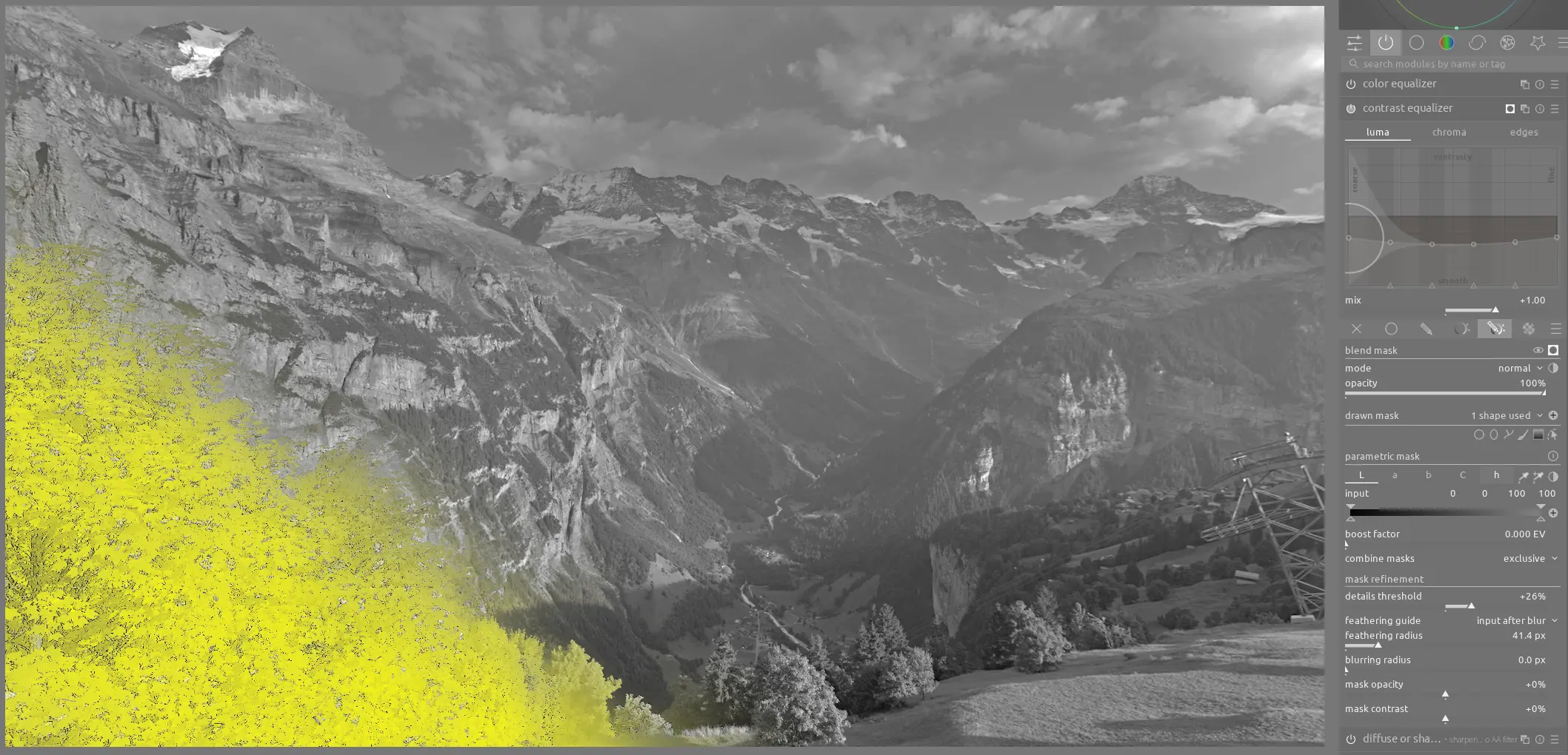
We can also use contrast equalizer to soften the contrast in this area:
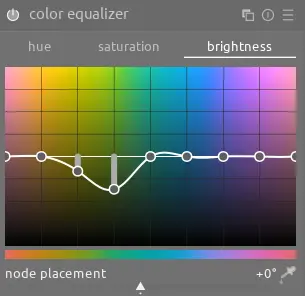
Moreover, use color equalizer to darken these colors:
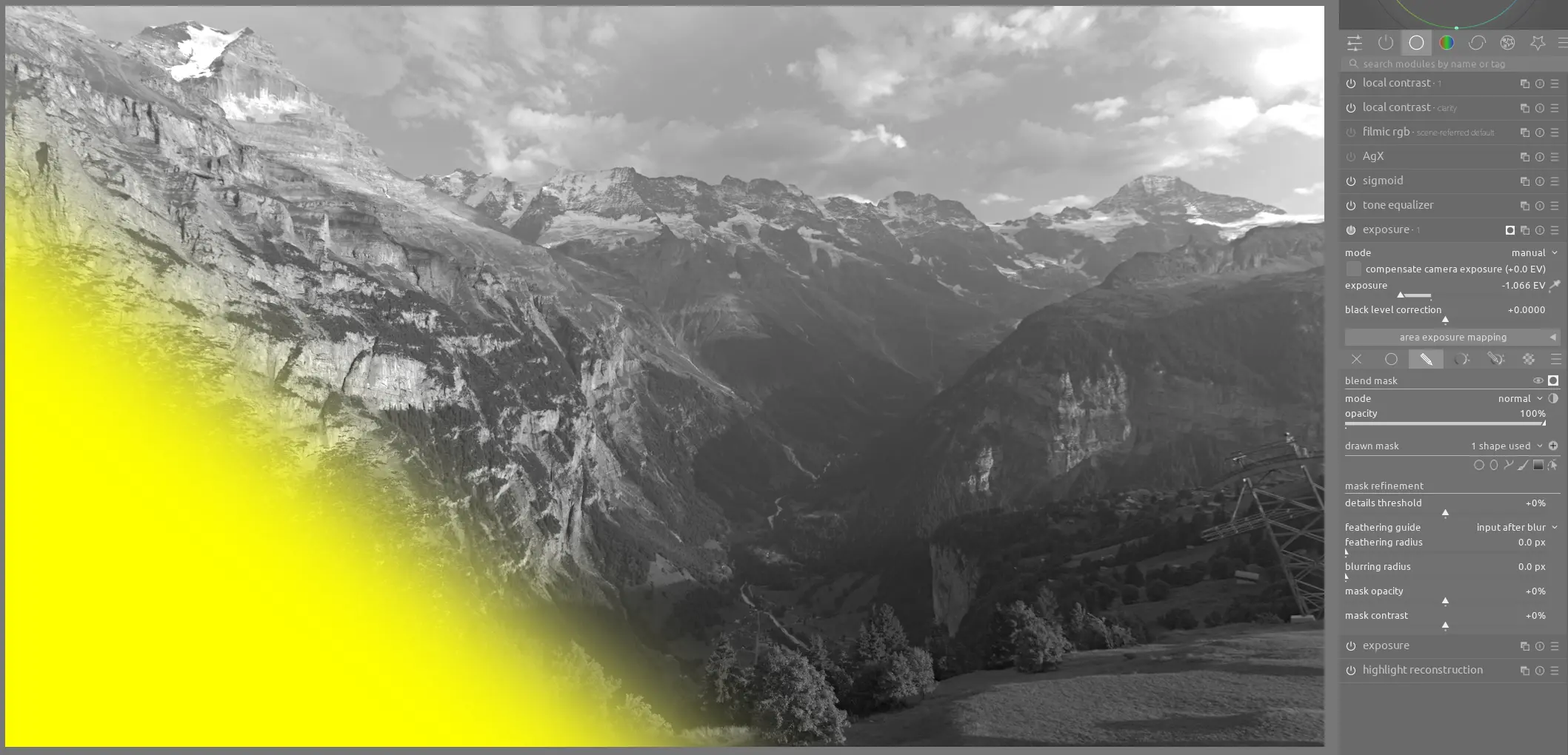
You can also use an instance of exposure with a drawn mask to create a vignette or just darken this area:
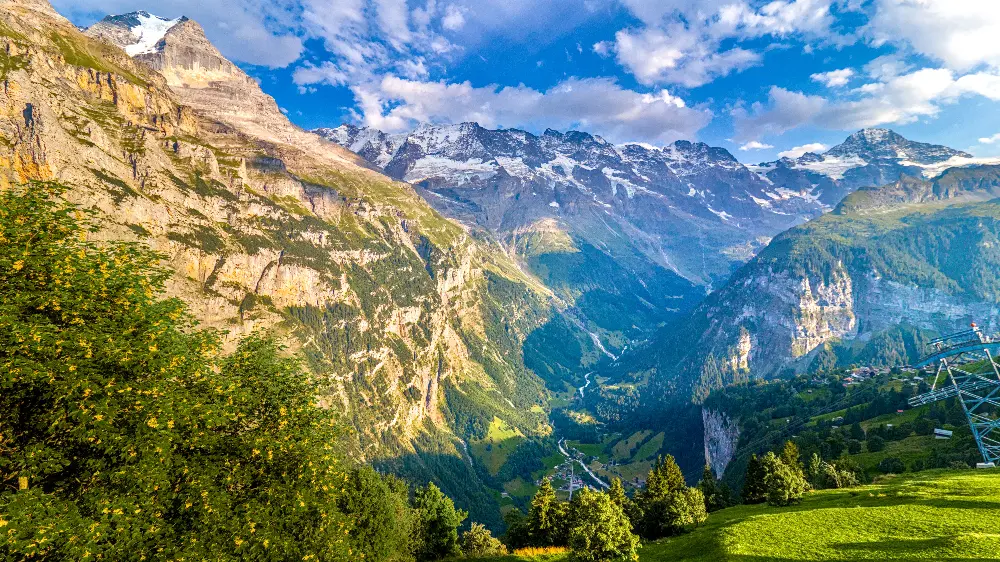
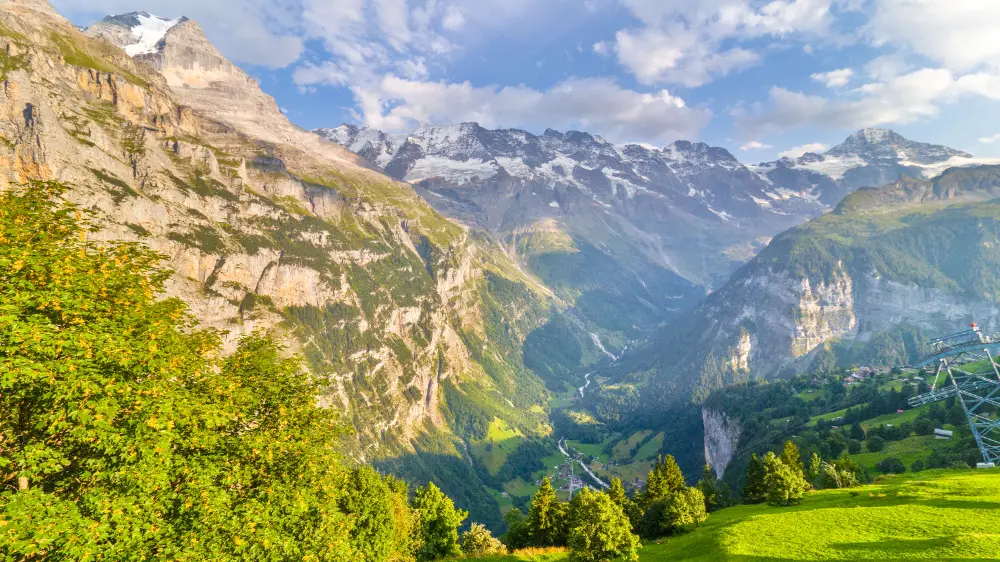
You may not need all of these techniques on a single image, so choose those that work best for your specific scene. The collective effect compared with the original is significant and directs your attention to the subject and away from these foreground distractions:
Separating The Foreground and Background
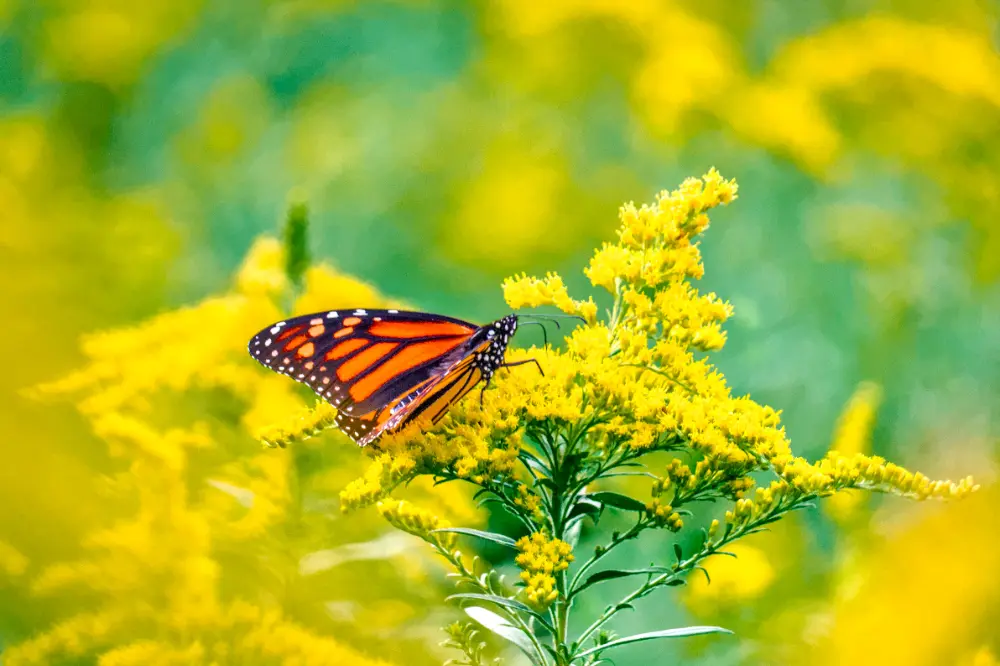
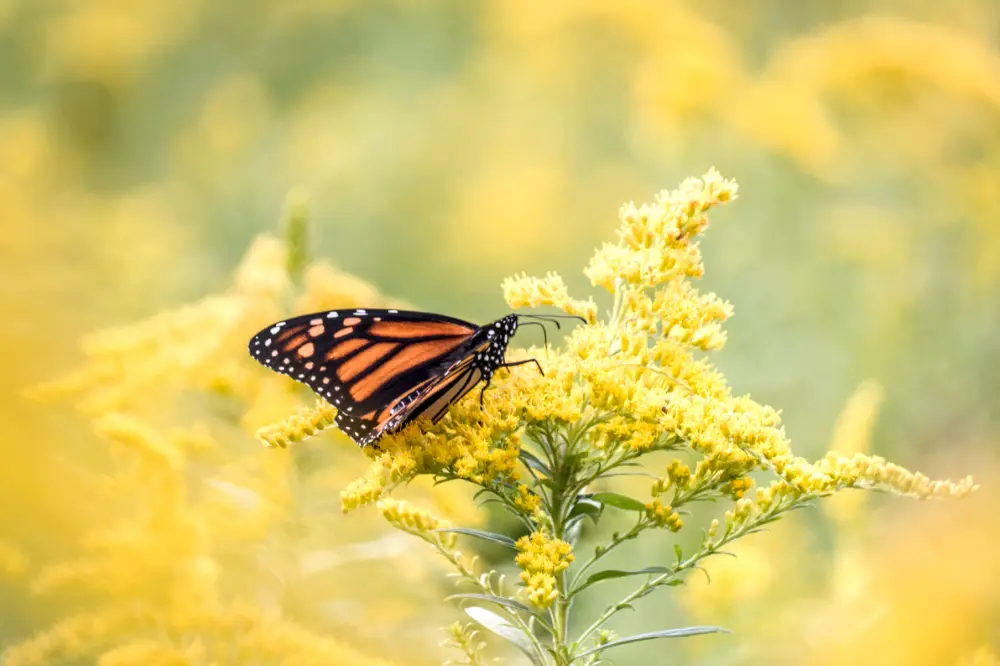
We can also use the difference between greens, yellows, and oranges to contrast the foreground and background. In this image, we want to spread out the colors:
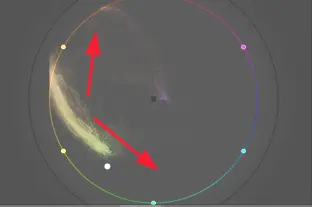
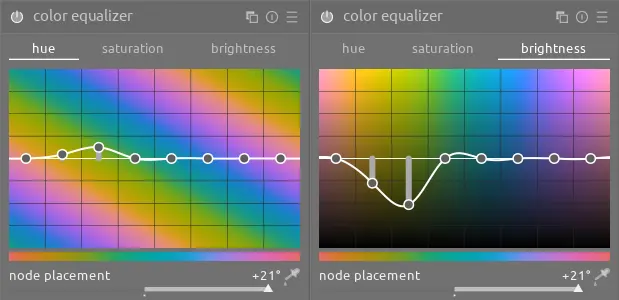
We can do this with color equalizer by shifting the hue of the greens in the background more towards blue. Moreover, we can also darken these colors on the brightness tab for additional contrast:
Grass Verses Flowers
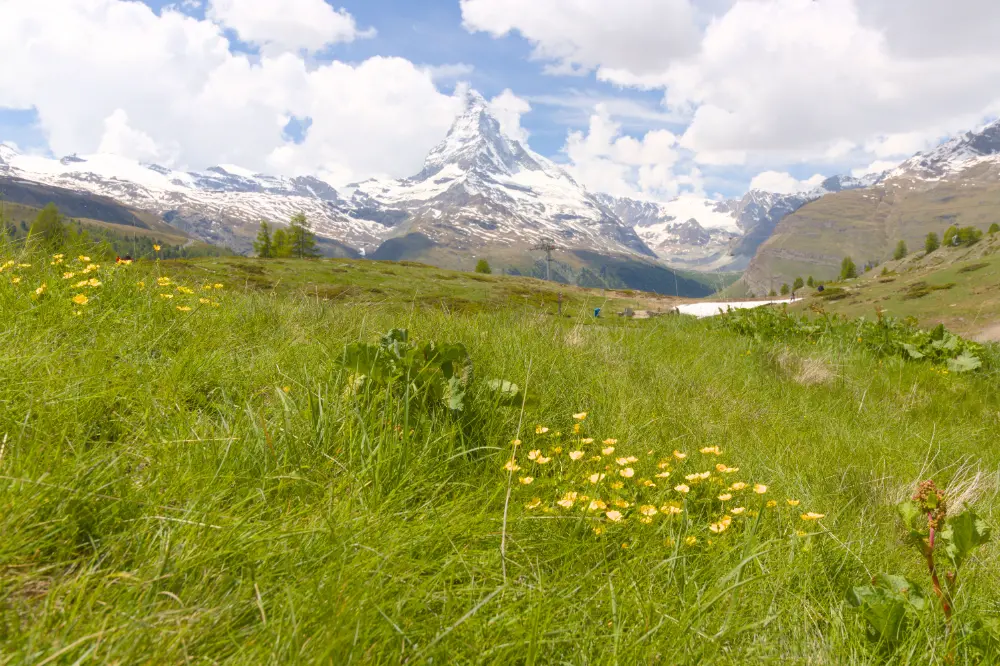
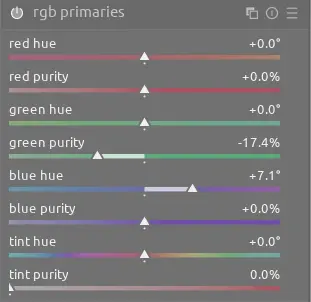
In this scene, the grass is fairly yellow which makes the yellow flowers blend in. We can make them stand out by using rgb primaries to shift the blue channel towards magenta:
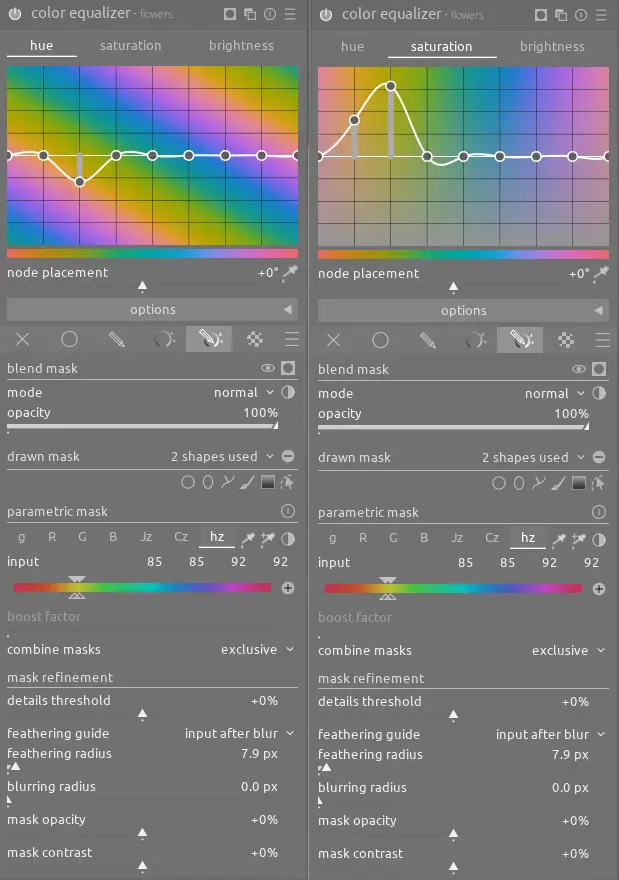
We also need to shift the flowers farther towards yellow, so we can do that with color equalizer and drawn and parametric masks to select just the flowers:
Finally, use an instance of local contrast with the multiply blend mode as we discussed recently to improve the contrast in the sky and mountain.
Conclusion
Darktable provides a number of different ways to adjust the greens and yellows to create better balance or contrast in a scene. Use the approach that works best for your particular image and remember that even a subtle adjustment can make a big difference.